How to set up interactive wallpaper effects.
This is the simplest Brush Reveal setup: set the overlay wallpaper first, choose the hidden underlayer, then move your cursor to reveal it.
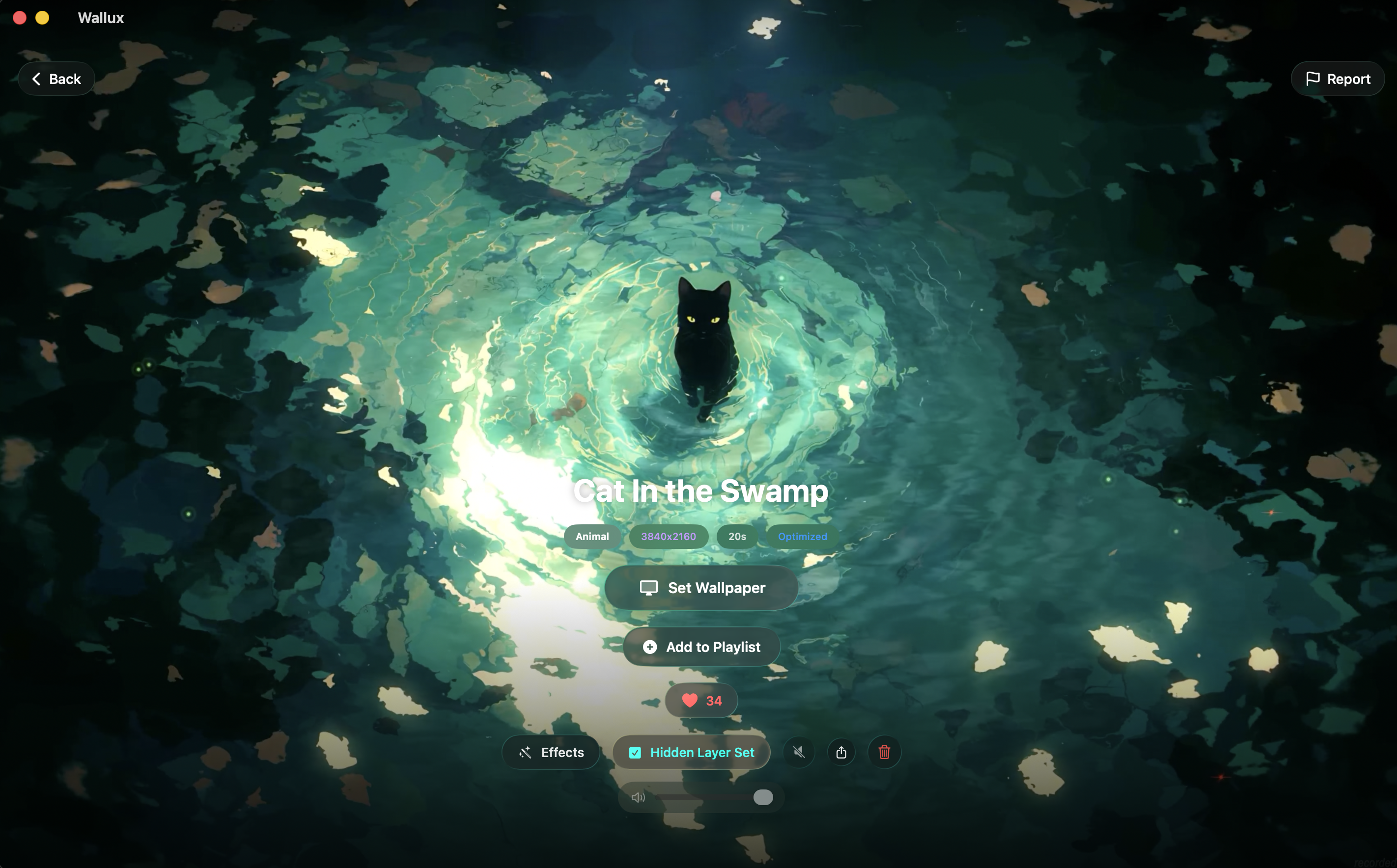
Underlayer
This is the hidden wallpaper sitting underneath the active one. Brush Reveal exposes this layer when you move the cursor.
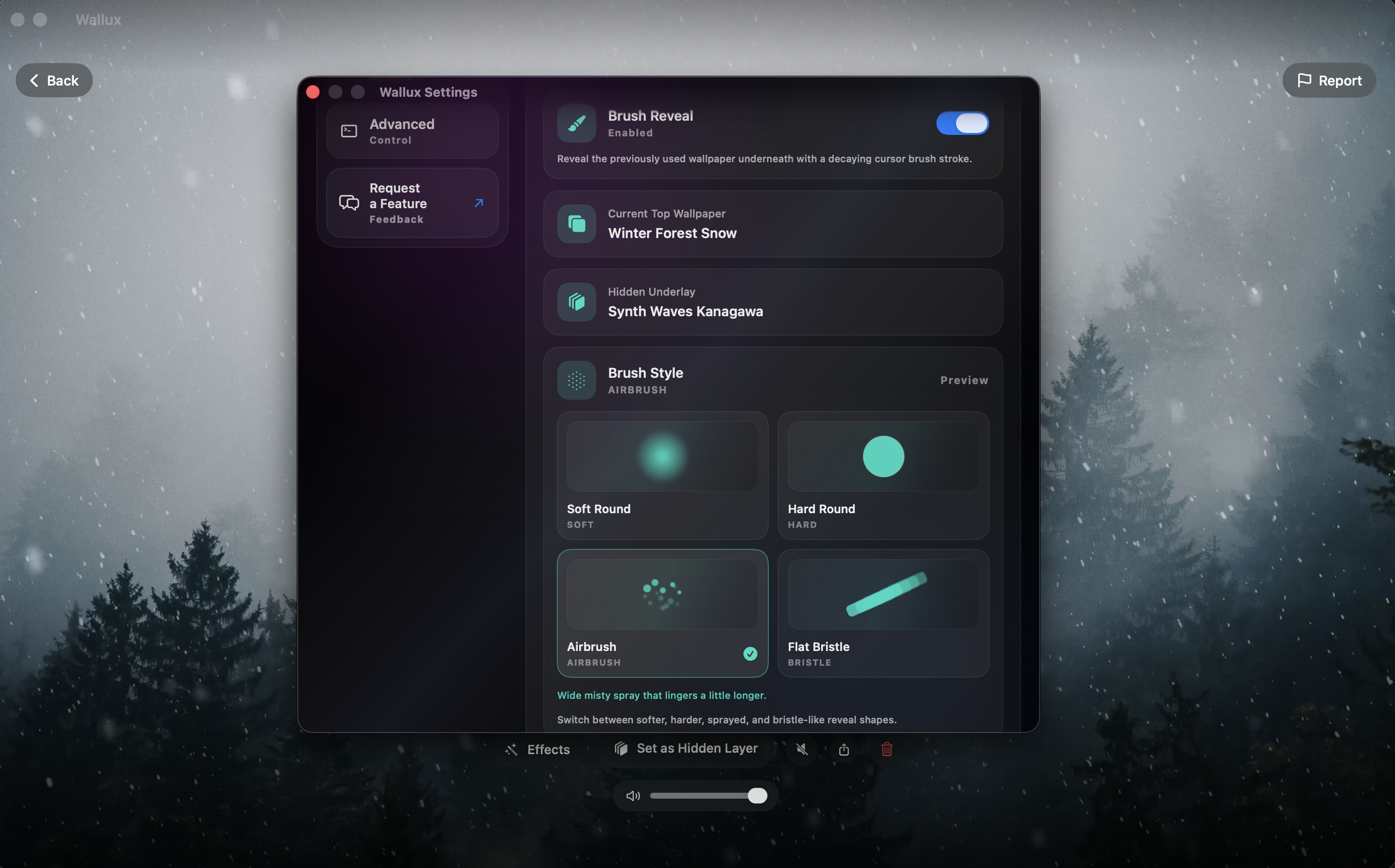
Overlayer
This is the wallpaper you keep visible on top. Set this first, then choose the hidden underlayer in Effects or Settings.
Set the overlay wallpaper first
Open the wallpaper you want visible on top and apply it first. This becomes the current top wallpaper that Brush Reveal peels back.
Choose the hidden underlayer in Effects
Open Effects or Settings, turn on Brush Reveal, then pick the wallpaper you want underneath as the Hidden Underlay.
Move your cursor to reveal the underlayer
Once the overlay and hidden underlayer are both set, move your cursor on the desktop to reveal the wallpaper underneath.
If Brush Reveal is not showing anything, check that the top wallpaper is already applied and that the Hidden Underlay field is set in Settings.